Skip to content

In today’s digital era, photographs play a very crucial role in our lives. Whether it’s a snapshot of your office gathering, wedding pictures, or any cherished memory, photos allow you to relive those precious moments any time. You can easily save your photos on any internal or external storage device, including SD cards. However, sometimes you may encounter situations when your SD card gets corrupted or unreadable, making the stored photos and other content suddenly inaccessible.
Fortunately, there are multiple ways to fix SD card corruption issues and restore your lost photos. This guide walks you through practical steps to diagnose, fix, and recover photos from a corrupted or unreadable SD card. Let’s get started!
Why Does Your SD Card Get Corrupted or Unreadable?
Before you apply any method to fix your corrupt SD card, try understanding the exact reason for such corruption. Here are the most common causes for the same:
- Improper Ejection: Removing the SD card while the read/write operation is in progress can corrupt the stored files and even lead to data loss.
- File System Errors: Improper formatting or using incompatible file systems (such as exFAT instead of FAT32) can lead to corruption or even data loss on storage devices, including SD cards.
- Bad Sectors: Continuous usage develops bad sectors on SD cards, which makes the stored files unreadable.
- Virus or Malware: Malicious programs like viruses or malware can hide or encrypt the files stored on your SD card, including those precious photographs.
- Power Loss: Unexpected power loss during transfer or capture can leave incomplete writes.
Understanding the exact cause of your corrupt SD card helps determine whether the issue is recoverable through software, formatting, or professional repair.
Common Symptoms of Corrupt SD Cards
If your SD card is corrupt or unreadable, its data structure is damaged, preventing proper reading or writing operations on it. Corruption doesn’t only mean physical damage; it may simply have logical or firmware-related issues.
When your SD card gets corrupted, you may encounter any of the following symptoms:
- SD card not recognised by computer or camera
- Error messages like “Please format the disk” or “Card not readable”
- Missing, distorted, or renamed photo files
- Unusually slow read/write performance
- Photos appear as “0 bytes” or “Unsupported format”
Pre-Requisites to Take Before SD Card Recovery
Now that you are familiar with the reasons for your SD card corruption and data loss, it’s time to proceed with some troubleshooting fixes. These include:
1. Check Physical Connections
Before applying methods to fix your corrupt or damaged SD cards, it’s important to check for physical connection issues. Sometimes, the problem is not with your SD card but a loose connection, damaged card reader, or faulty adapter can prevent the card from being detected properly.
Look for physical signs of damage, such as bent pins, cracks, or dirt on the metallic contacts. If everything seems fine with the card, try connecting it using a different card reader, USB port, or even another computer.
2. Check SD Card Detection
Sometimes, your SD card is just connected to your Windows PC or Mac, but it is undetectable. It is good to confirm if the system detects the SD card. For this:
On Windows PC:
- Press the Windows + R keys and in the Run prompt, type diskmgmt.msc to launch Disk Management.
- Check if the SD card appears (with or without a drive letter).
- If shown as “RAW” or “Unallocated,” the file system is corrupted.
On Mac:
- Launch Disk Utility and check if your SD card appears in the sidebar.
- If the card appears but is greyed out, it may need to be mounted or repaired.
How Do I Recover Photos from Corrupted or Unreadable SD Cards?
The aforementioned methods primarily address SD card-related issues. However, if you encounter data loss on your SD card and your precious photos are deleted, it’s important to act immediately. Here are some common SD card recovery techniques that you can try to recover photos from SD card:
Method 01: Assign a New Drive Letter to SD Card
Instances may occur where your SD card is properly connected and recognised by your system, but it does not appear in File Explorer or shows as inaccessible. This mainly happens if the card has lost its drive letter assignment. In such a case, you can follow the below steps to assign a new drive letter to your SD card and make it recognisable again:
- Firstly, connect the SD card to your computer.
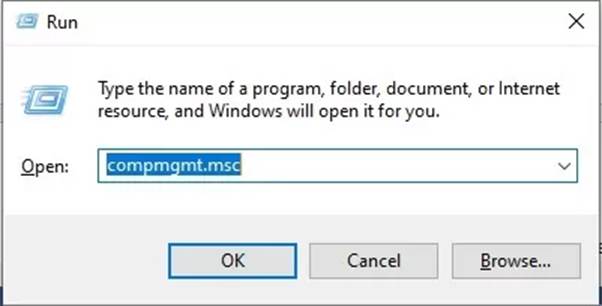
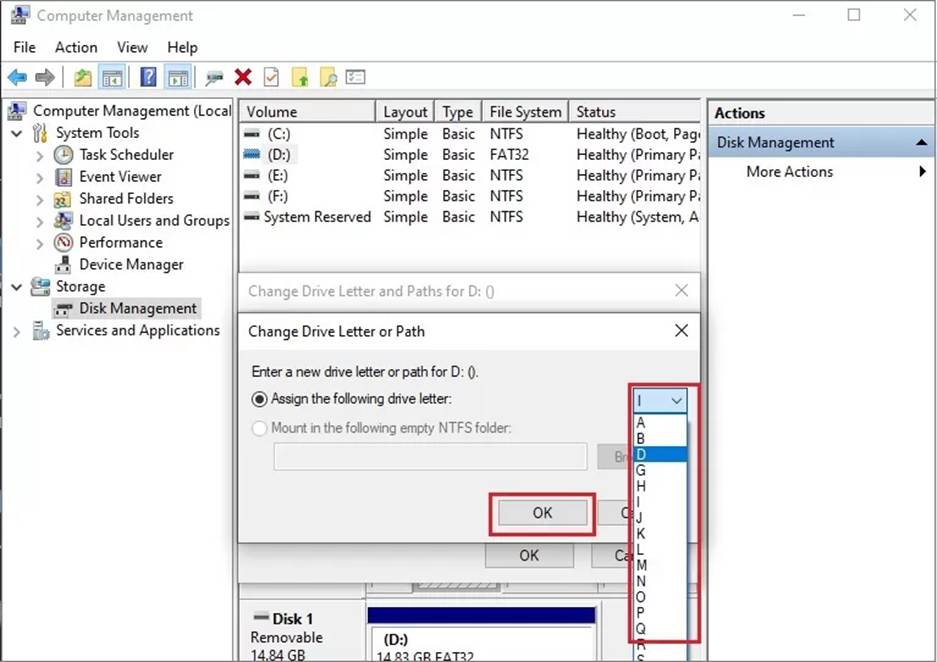
- Press the Windows + R keys, type compmgmt.msc and hit the OK button to open Computer Management.
- Go to Storage from the left pane, then select Disk Management.
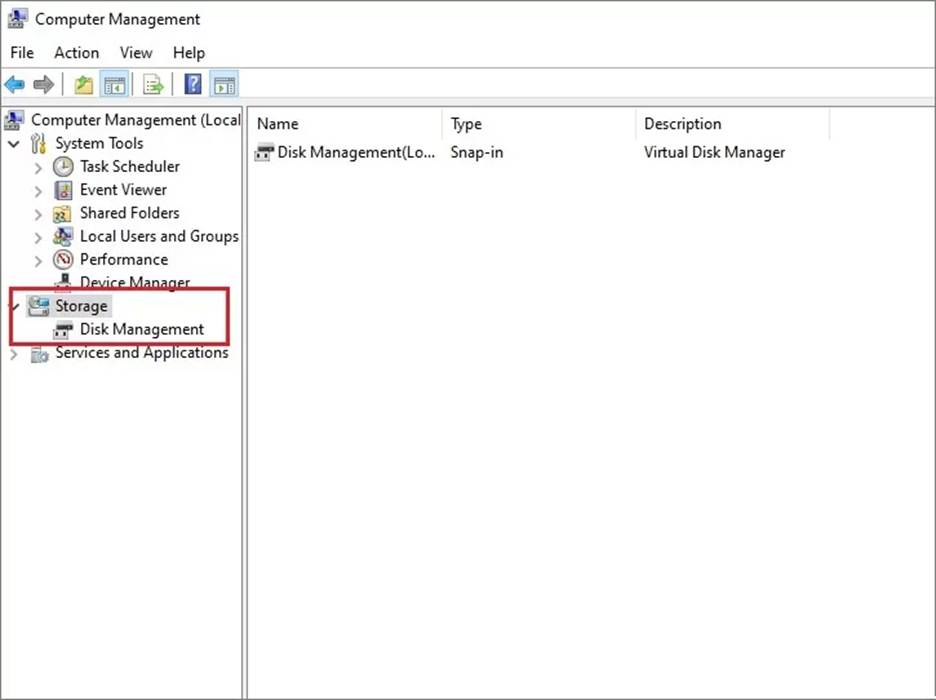
- Locate the SD card you want to fix. It may appear without a drive letter.
- Right-click on the drive and select Change Drive Letter and Paths.
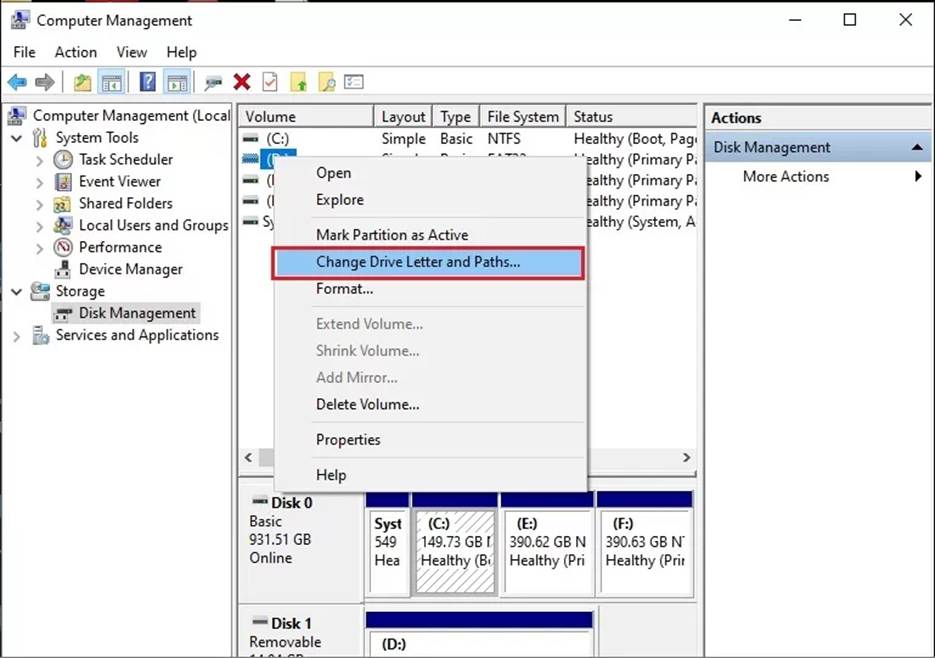
- Click Change from the dialogue box that appears.
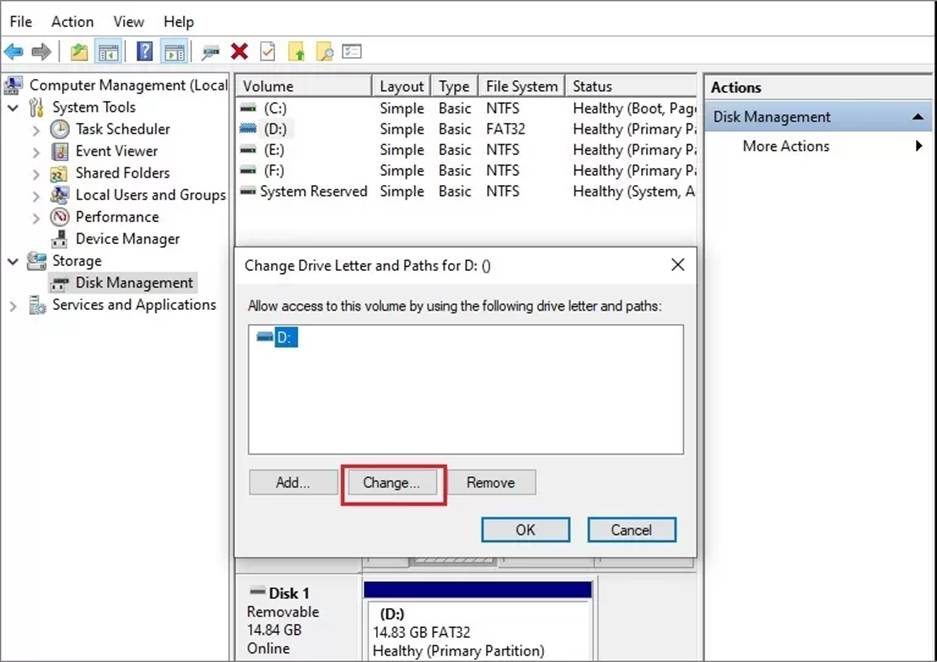
- Now, assign a drive letter from the drop-down menu next to Assign the following drive letter: option.
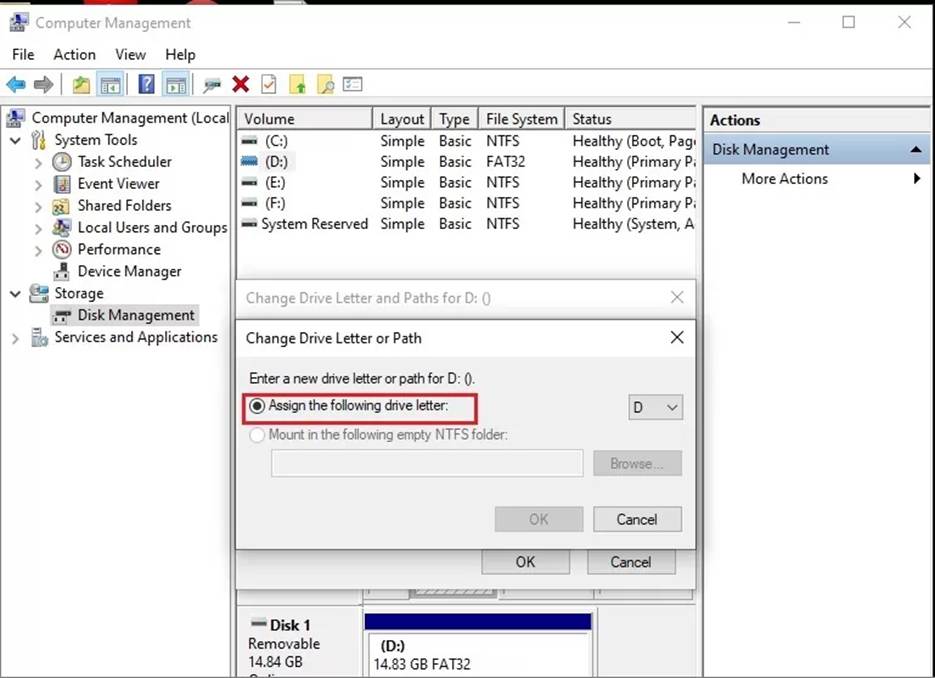
- Click OK and restart your system.
Check if the SD card is successfully mounted and the file system is accessible, allowing you to browse and retrieve stored files, including photos.
Method 02: Use Third-Party Photo Recovery Software
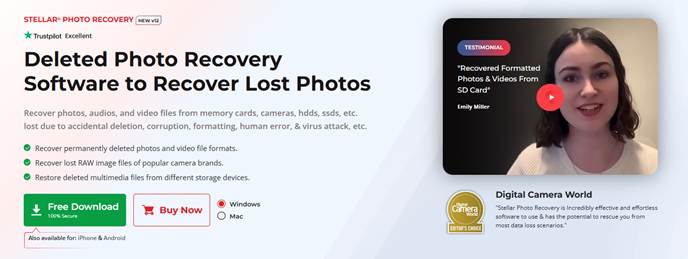
If the above method to recover photos from corrupted or unreadable SD card seems difficult, you can use third-party photo recovery software. Tools like Stellar Photo Recovery are designed to scan the card at a deeper level, allowing you to restore all the lost/deleted files easily. These tools allow you to recover photos deleted due to accidental deletion, formatting, system errors, or any other reason.
There are several photo recovery tools available which can restore images from SD cards that are recognised by the system but whose files appear missing, corrupted, or inaccessible. These tools perform a thorough scanning of your storage device to recover deleted photos of various file formats, including JPEG, PNG, or RAW formats. Additionally, ensure that your photo recovery software offers preview functionality to preview files before saving them on your device. This helps to reduce the risk of unnecessary file recovery and saves both time and storage space.
Preventing Future Photo Loss or SD Card Corruption
Once your photos are recovered, consider the following preventive tips to prevent similar issues in future:
- Use In-Device Formatting: Always format cards using the camera or phone rather than the computer.
- Proper Handling: One of the main reasons for SD card corruption is improper handling. Always safely eject your SD cards from all devices.
- Maintain Regular Backups: Create multiple backups of your important photos using cloud backups or an external drive.
Wrapping Up
Recovering photos from corrupted or unreadable SD card may sound complex, but the aforementioned photo recovery methods can help in easy and quick recovery. The key is timely action — stop using the card, diagnose logically, recover systematically, and back up the results. By following the steps and best practices above, you can restore valuable photos and ensure your future storage workflows remain resilient and data-safe.